
# Timeslots computation
# General idea
Available timeslots computation is based on several different factors. The system is checking the advisor's skills and location settings and adds different time limitation scopes predefined for the branch and the Advisor. If the appointment is carried out on site travelling time will be taken into account too.
# Skills and location settings - Advisor
Skills ("skills")
Appointment Types ("appointment_categories”:, "title":) can be setup to have a predefined set of skills that the Advisor must have to be able to carry out the appointment OR they can be setup with no skills added. Advisors therefore can be created with a defined set of skills OR no skills at all - to be taken into account when calculating available advisors for each appointment booking. All advisors can be booked for Appointment Types with no skills.
Skills can be defined when creating or editing an advisor/appointment type.
Appointment Methods ("category_location_skill_names")
As well as a defined set of skills every appointment type also has predefined appointment methods. Appointment methods are used to locate the appointments. Overall we have 6 different groups of Methods (each account has it's own mix of methods):
- On site (Appointment is carried out on client side - travel time will be added)
- No specific location (Appointment can be carried out from any location)
- By phone
- By online video
- In Branch, public (Appointment is located in the branch - no meeting room booked - only branch members can carry out the appointment)
- Face2Face
- Phone
- Online video call
- In Branch, private (Appointment is located in the branch - meeting room booked - only branch members can carry out the appointment)
- Face2Face
- Phone
- Online video call
- In Branch - Video conference (Appointment is located in the branch in a meeting room and can be carried out by either Advisors from all branches/hubs)
Appointment methods can be defined when creating or editing an advisor/appointment type.
Geographic Zones
If the advisor has any of the appointment methods:
- On site
- By phone
- In Branch - Video conference
- By online video
The geographic zones can be on a high level (e.g. 'Entire France') or be detailed into very specific areas in specific post districs.
Geographic zones can be defined when creating or editing an advisor
# Travel time
# Working hours
There are two types of Working Hours that needs to be set up in order for Calizy to do the computation of available timeslots for booking appointments
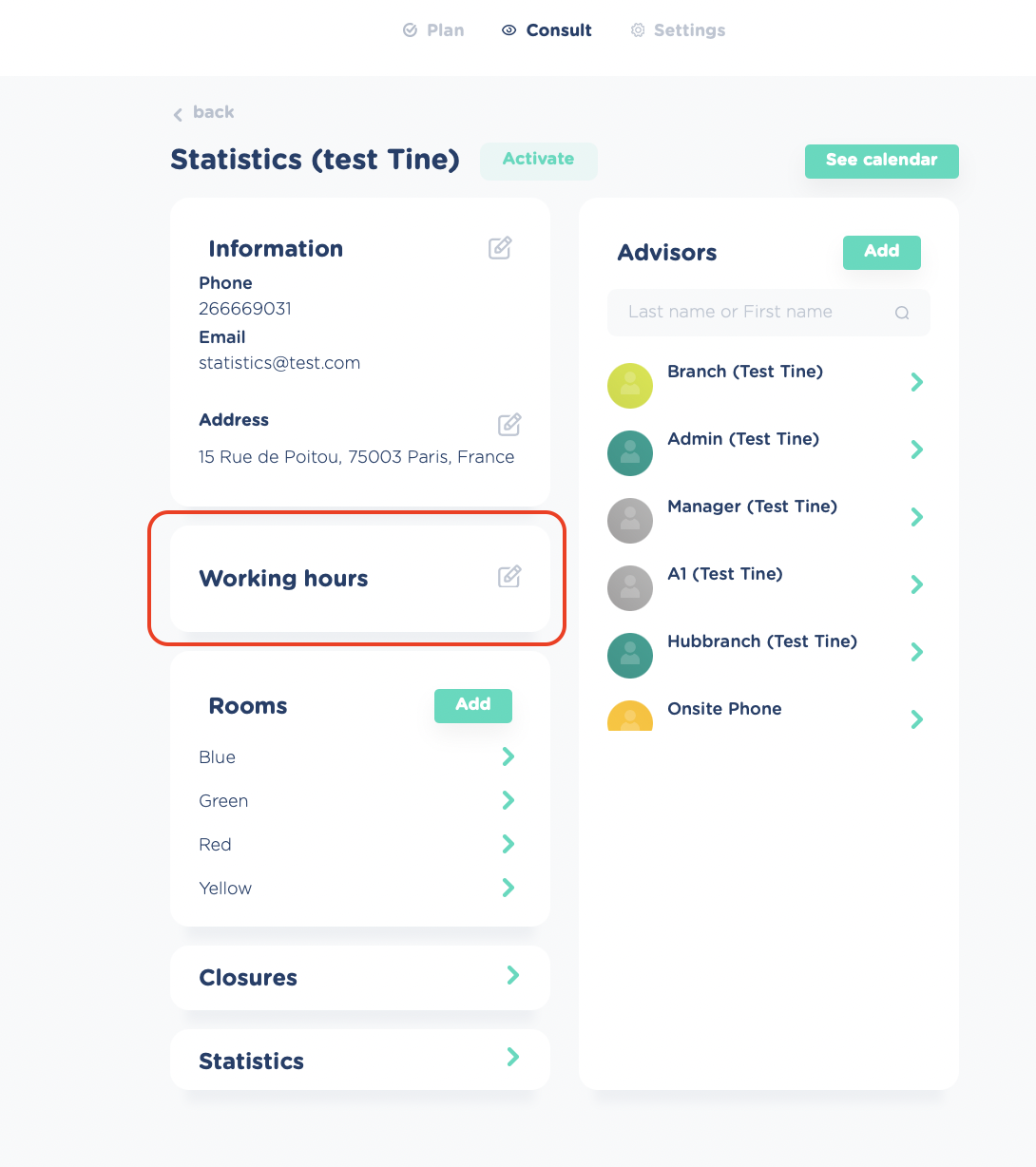
- Branch Working Hours ("Consult" > "Branches" > choose branch > "Working hours")
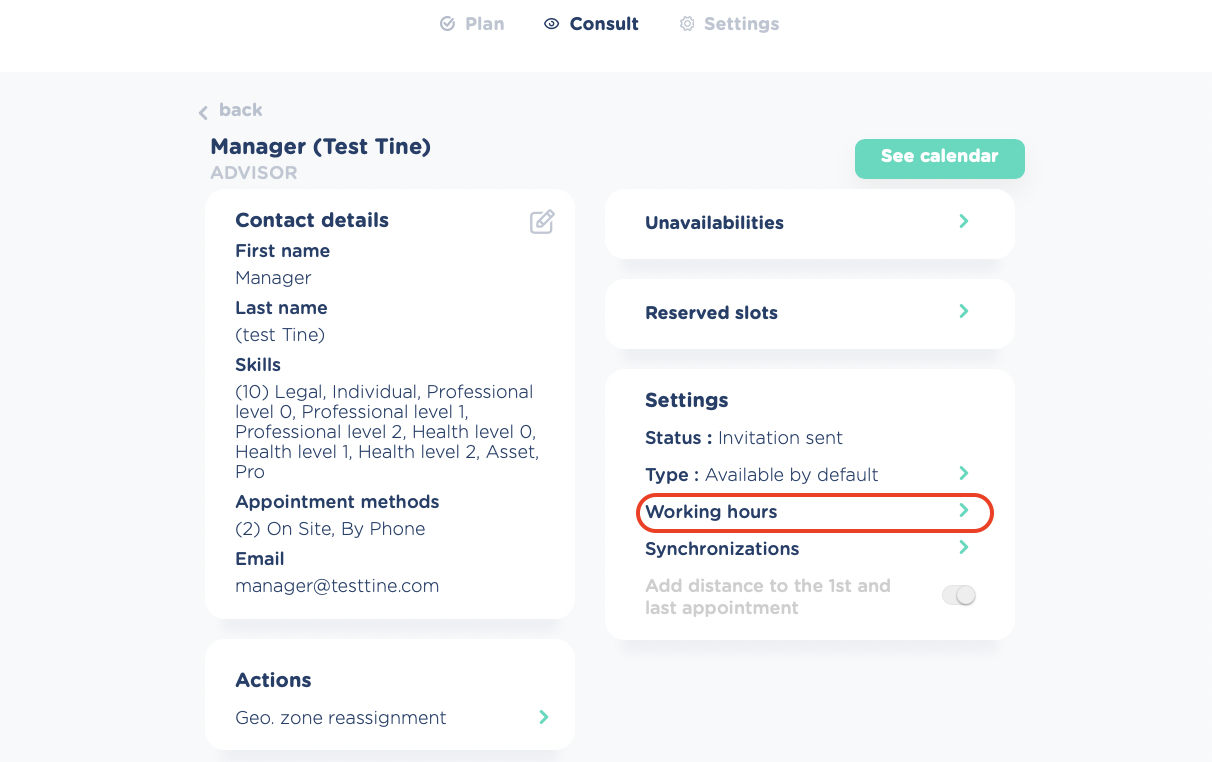
- Advisor Working Hours¨ ("Consult" > "Advisors" > choose advisor > "Working hours")
Branch Working Hours
To be able to compute avaiiabilities of appointments and rooms in the branch it is necessary to set up the branch working hours. Rooms and Appointments in the branch will be available for booking within the DAY From/To timeslots - except for LUNCH From/To timeslots.
Advisor Working Hours
To be able to compute availiabilities of the Advisors it is necessary to set up the working hours for each advisor since these can be different from the working hours of the branch. An advisor can fx do 'On site' appointments outside branch working hours - or finish the working day before the branch closes. Advisors will be available for booking within the DAY From/To timeslots - except for LUNCH From/To timeslots
# Lunch break
Lunch Breaks must be set up to calculate unavailability for Advisors and Rooms during their working hours.
- You define the lunch break unavailability by choosing any LUNCH From time to any LUNCH To time
- IF the Advisor/Room(s)/Branch has all day availability you can choose to disable Lunch Break by switching off the LUNCH BREAK selector button
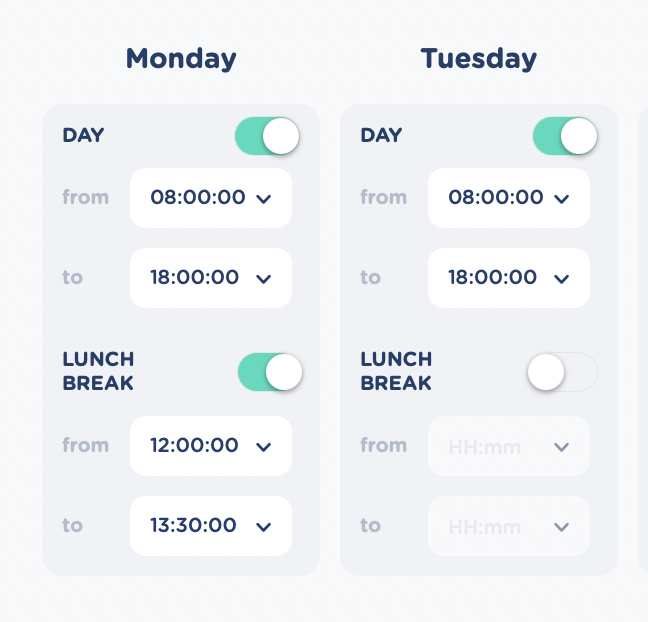
Advisors and Branch can have different Lunch Break timeslots. Advisors can be be booked for all kinds of appointments matching their Skills and Appointment Methods within Branch Lunch Break - except for appointments in the branch - as long as the advisor is available in the timeslot.
# Reserved slots
Reserved slots are used to define when the user is available for the different Appointment Methods specified on the Advisor profile.
- Reserved slots must be defined if the advisor has appointment method 'On site' + one or more other appointment method(s). If not - advisor will not be available for 'On site' bookings. 'On site' can never be combined with other methods in a reserved slot.
- Reserved slots can be defined if the advisor has multiple appointment methods to define specific timeslots where the advisor is only available for one or more specific appointment methods. If not - advisor will always be available for all methods (except for 'On site' as stated above)
- Reserved slots cannot be defined and will be disabled if the advisor only has one appointment method on the advisor profile
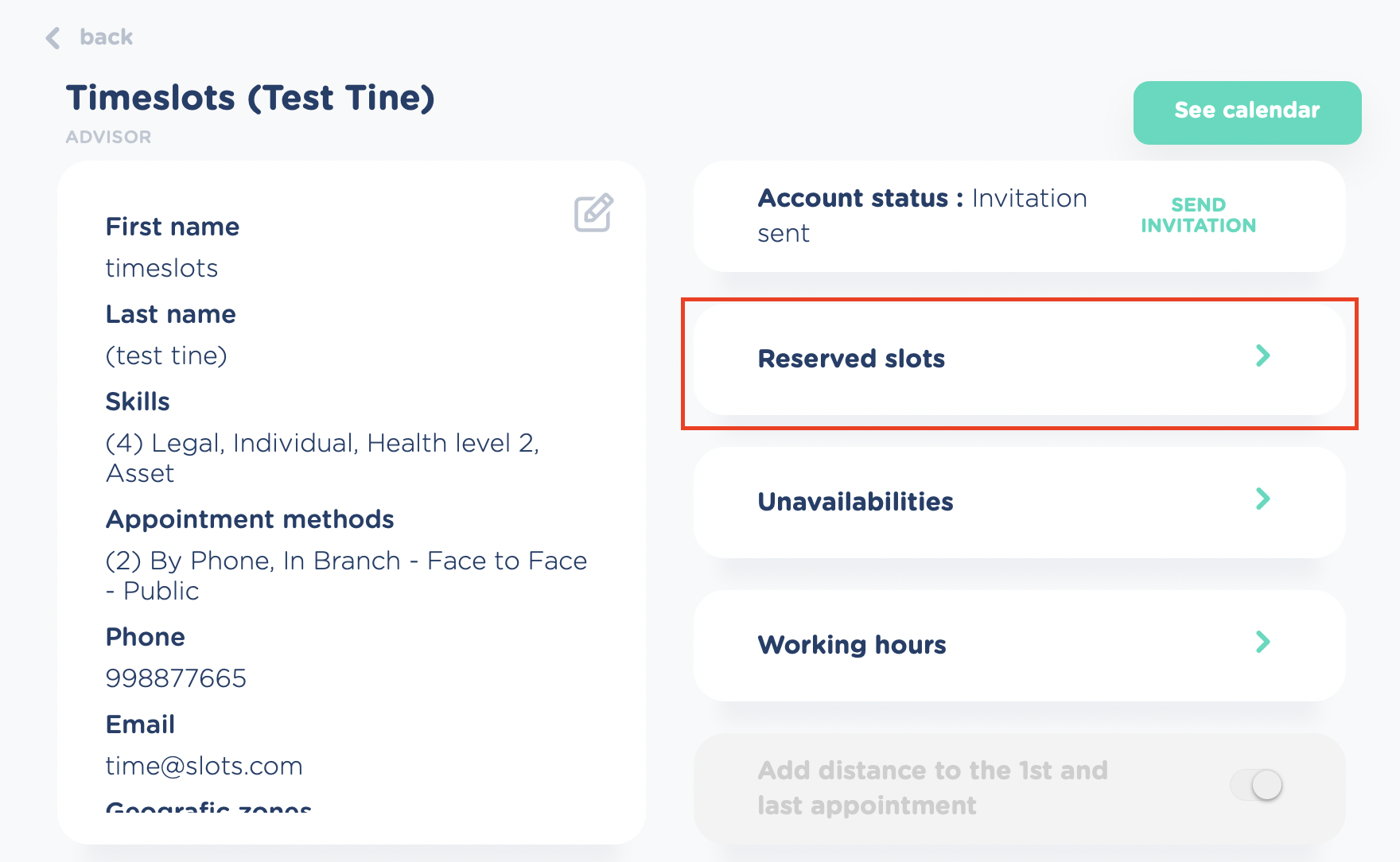
You can add reserved slots for an advisor by clicking "Consult" > "Advisors" > choose Advisor > "Reserved slots"
# Define reserved slots
Choose the date on which you want to add the Reserved Slot and fill in:
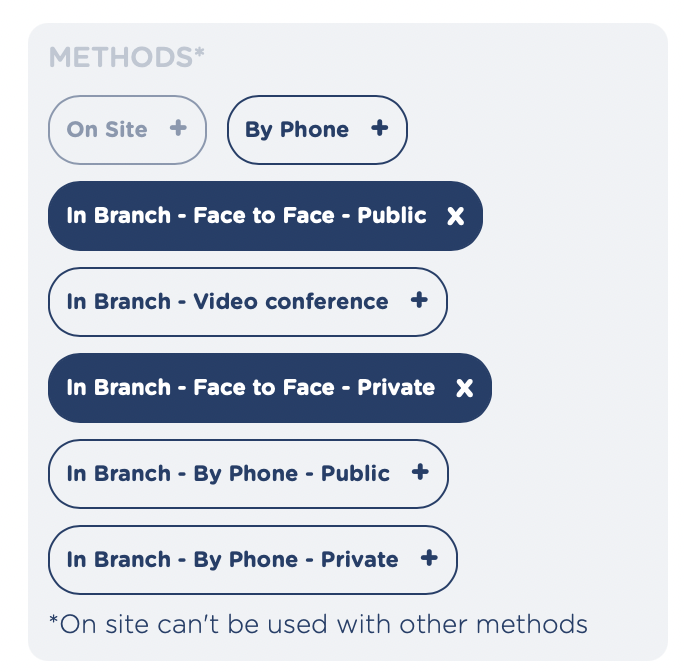
"Methods" (choose the Appointment Method(s) for which the slot is reserved)
- If 'On site' is chosen no other method can be selected (see rule above)
- All other methods can be chosen combined or as stand-alone
Select duration of Reserved slot:
- "All day" (switch on if Advisor will be reserved for bookings with the chosen method(s) the whole work day)
- "From"/"To" (select start date & time + end time for the reserved slot - NB! Start and end date will always be the same. If you want the reserved slot to be applied to more dates, use the 'recurrence' functionality)
Select recurrence (Optional, default setting is "No recurrence")
- "No recurrence"
- "Every day"
- "Every week"
- "Every month"
Optional: Choose an end date of recurrence by switching on "End recurrence" selector and select an end date in "Choose a date" field
If you chose to make a recurring reserved slots the reserved slot will be added to all dates defined in the recurrence settings - except for:
- Bank holidays
- Days with unavailabilities
- Timeslots where Events are booked (in this case there will be added one reserved slot before the event and one after, if the RS timeslot is longer than the event timeslot, e.g.: event from 10-11 + add RS 8-12 --> RS1: 8-10, RS2: 11-12)
NB! Recurring reserved slots with no end date will be added for 1 year (continuosly)
NB! AS IS we cannot create 2 upon each other following Reserved Slots - meaning that a Reserved slot cannot have the same startime (dt_start) as the previous Reserved Slot's end time (dt_end) ex:
- RS created from 8am to 12pm Wednesday 16. November 2022
- User creates new RS from 12pm to 6pm Wednesday 16. November 2022 --> ERROR 422
- User creates new RS from 12:30pm to 6pm Wednesday 16. November --> OK
# Consult reserved slots
When clicking the "Reserved slots" button you can also consult already scheduled reserved slots. The days with added reserved slots are displayed with a green dot below the date.

Above the calendar icons for all the advisor's appointment methods are displayed. As a default "All" is selected and you will therefore see all dates with reserved slots added no matter which appointment method(s) the slots are reserved to.
To see which days are booked for the different appointment methods click the icon for the method you want to consult.
Example
- Selecting 'On site' icon
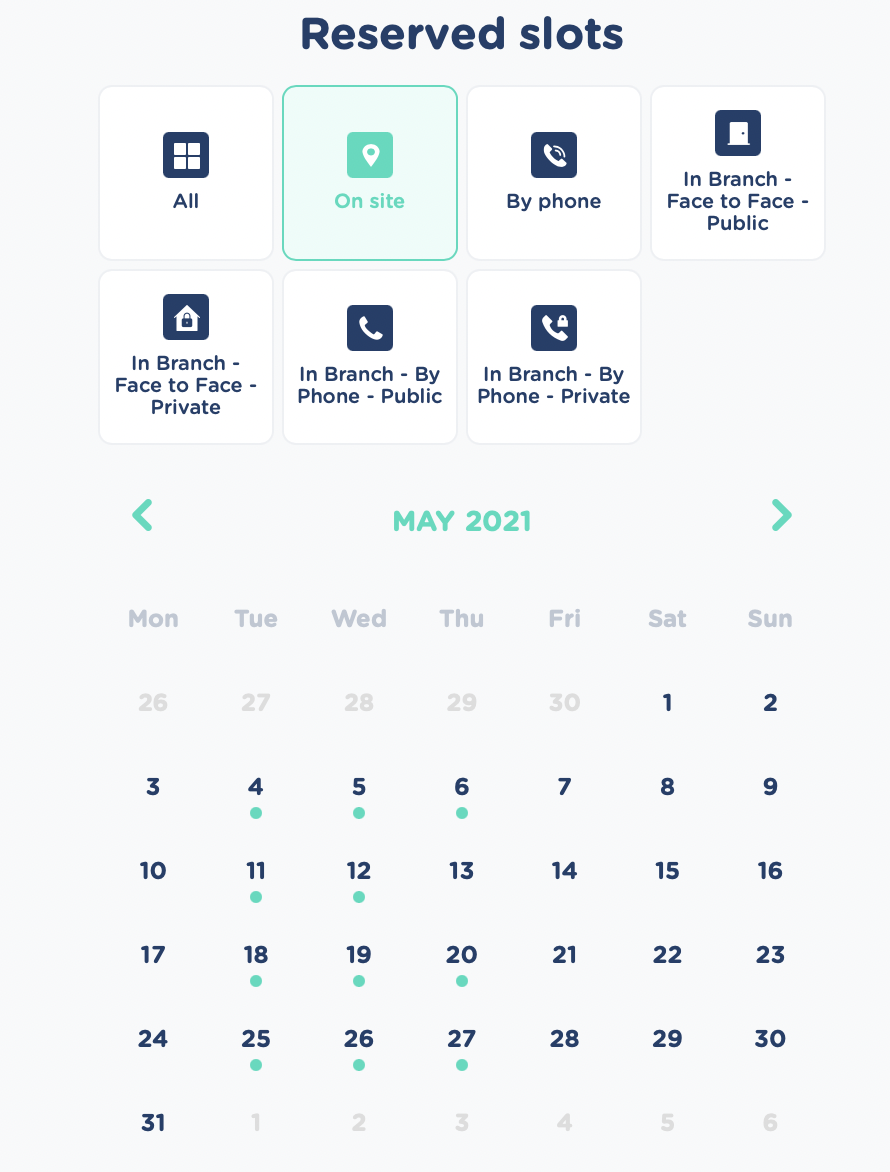
- Now only Tuesdays, Wednesdays and Thursdays are marked with green dots since these are the days with 'On site' reserved slots
- Selecting 'In Branch - Face to Face - Public'
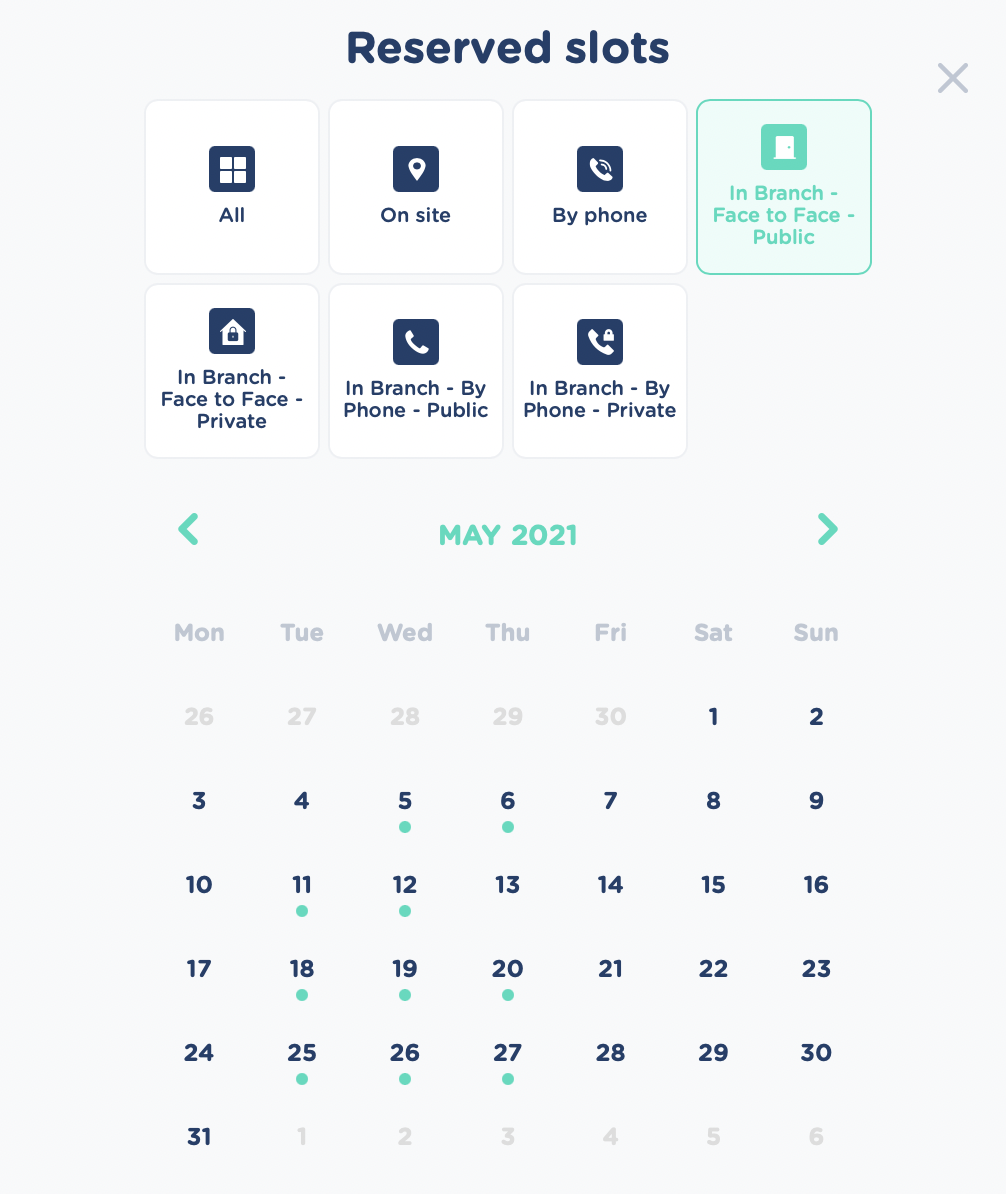
- This also shows Tuesdays, Wednesdays and Thursdays
- Clicking on one of the dates (here Wednesday 5. May) shows you and overview of the reserved slots on a day
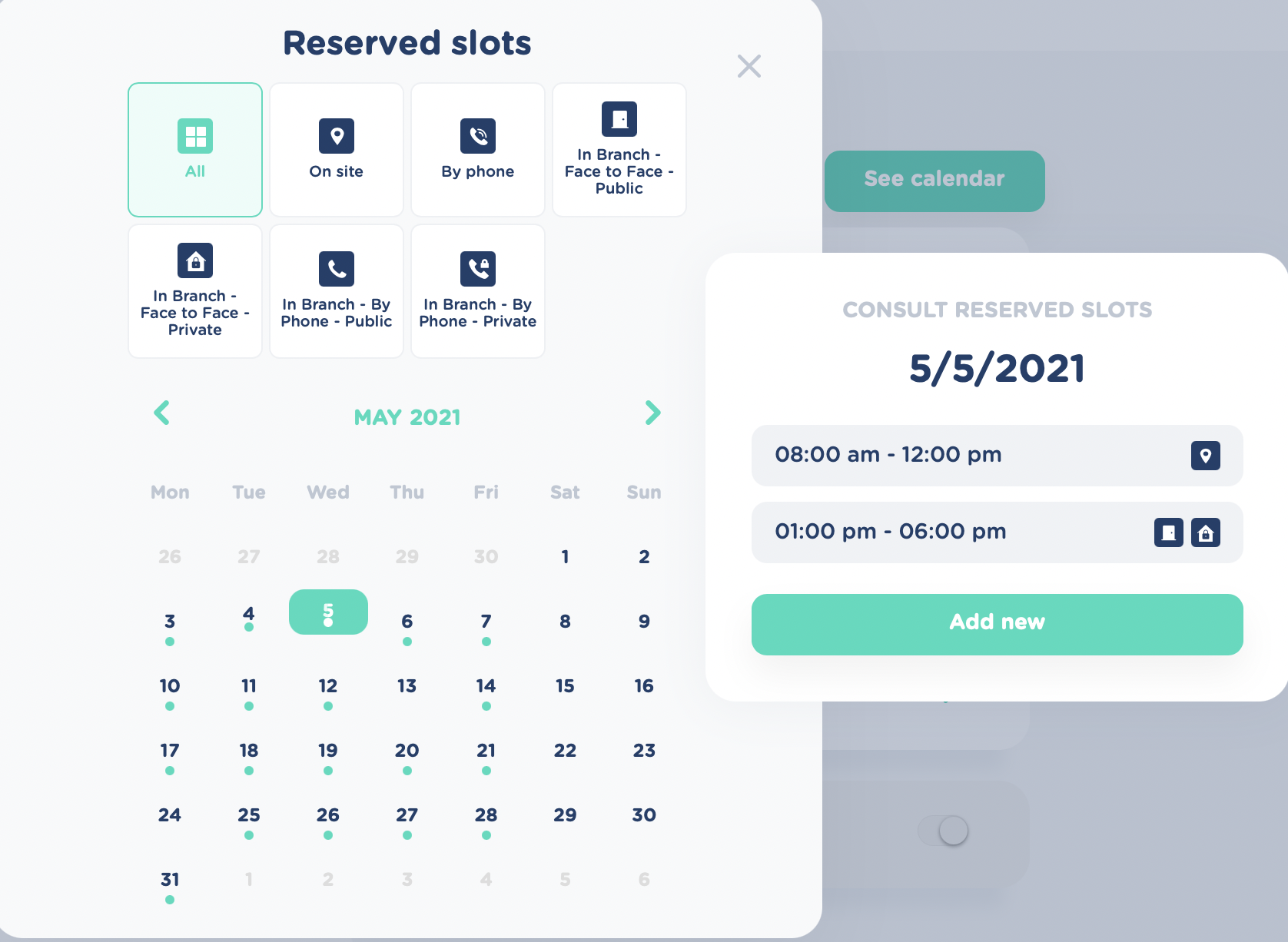
- and you can now see, that the advisor is reserved for 'On site' in the morning and 'In Branch - Face to Face - Public' + 'In Branch - Face to Face - Private' in the afternoon
- To consult the details on each reserved slot - clik on the slot
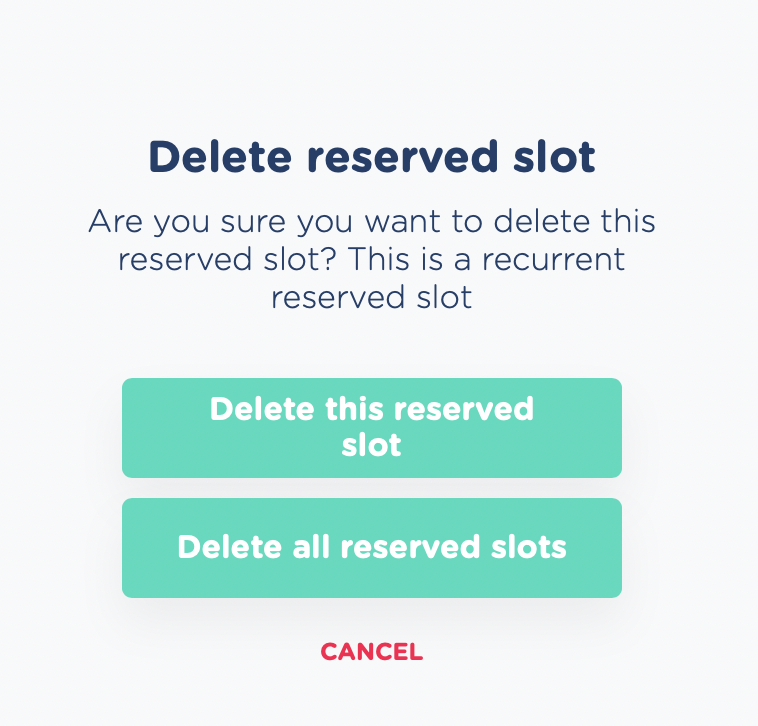
- If you want to delete the reserved slot, click the 'Delete' button
- for recurring slots you can choose to delete 'this reserved slot' (the specific slot on the chosen date) or 'all reserved slots' (all recurring entries of this reserved slot)
# Unavailabilities
Availability type
An Advisor is per default set to be available ("availability_type": “strict”)
When an Advisor is set to have availability type “Available” the Advisor can be booked for appointments within the defined working hours.
An Advisor can also be set to have availability type “Unavailable” (“availability_type": “flex”).
When an Advisor change type from “Available” to “Unavailable” a new section is added to the Advisor page. The section is called “Available days”.
Available days
“Available days” (“flexible_dates") are days where the Advisor is available for Appointments. Min. 1 day - max. 3 months in the future from day of booking the availabilities. IF Advisor needs less than a days availability the user needs to add full day Availability and then add an Unavailability on the same day.
E.g.:
- Advisor needs availability 14. September 8:00-14:00
- Advisor Working Hours: 8:00-18:00 —> Set availability on 14. September + add Unavailability 14. September 14:00-18:00
Set unavailabilities
If an Advisor is not available for Appointments on specific days or during a specific timeslot user can set up an Unavailability to make sure the person is not available for booking of Appointments on that day/timeslot.
Choose the date on which you want to add the Unavailability and fill in:
- "Choose a title” (mandatory) - Titles are account specific
- Select duration of Unavailability (All day OR from/to) (mandatory)
- Select recurrence (Optional, default setting is "No recurrence")
- Optional: Choose an end date of recurrence by switching on "End recurrence" selector and select an end date in "Choose a date" field
Closures
Closures ("stoppages") are Unavailabilities set on a Branch or Hub level
These are high-level Unavailabilities that applies to all members of the Branch/Hub.
They can only be added/edited/deleted on Branch/Hub level.
Advisors who are members of both a Branch and a Hub will be unavailable in both entities on dates where either the Branch or the Hub has Closures.
Unavailabilities / Availabilities Hierarchy - low to high
| UI Name | System name | Description |
|---|---|---|
| Availability type | "availability_type": “strict” “availability_type": “flex” | Standard availability |
| Available dates | “flexible_dates" | Makes Availability type = unavailable (“availability_type": “flex”) available on dates chosen |
| Unavailabilities | "unavailabilities" | Makes Availability type = available ("availability_type": “strict”) Unavailable on dates chosen Overrules “Available dates” (“flexible_dates”) set for availability type = unavailable (“availability_type": “flex”) |
| Closures | "stoppages" | Overrules all availabilities IF Branch/Hub has closures, all members are Unavailable no matter the settings of Availability type, Available dates and Unavailabilities |
# Direct booking
It is also possible to book an appointment with less restraints for urgent/important appointments. These bookings can only be made by the user himself via his own calendar in SaaS. Direct bookings can therefore only be made/carried out by Managers ("manager_profile") with "create" rights in "Advisor calendar" (set in Settings>Roles) who is also an Advisor.
Restraints in scope of direct booking:
- Skills
- Methods
- Location - address OR postcode OR branch/room (branch is default the branch the advisor is a member of --> for direct booking "In branch - videoconference" are not available for advisors who are only hub members)
Restraints out of scope for direct booking:
- Advisor working hours
- Branch working hours
- unavailabilities (either booked unavailabilities OR unavailability because of Event or Appointment)
- Reserved slots